> ## Documentation Index
> Fetch the complete documentation index at: https://langchain-zh.cn/llms.txt
> Use this file to discover all available pages before exploring further.

# 创建提示词

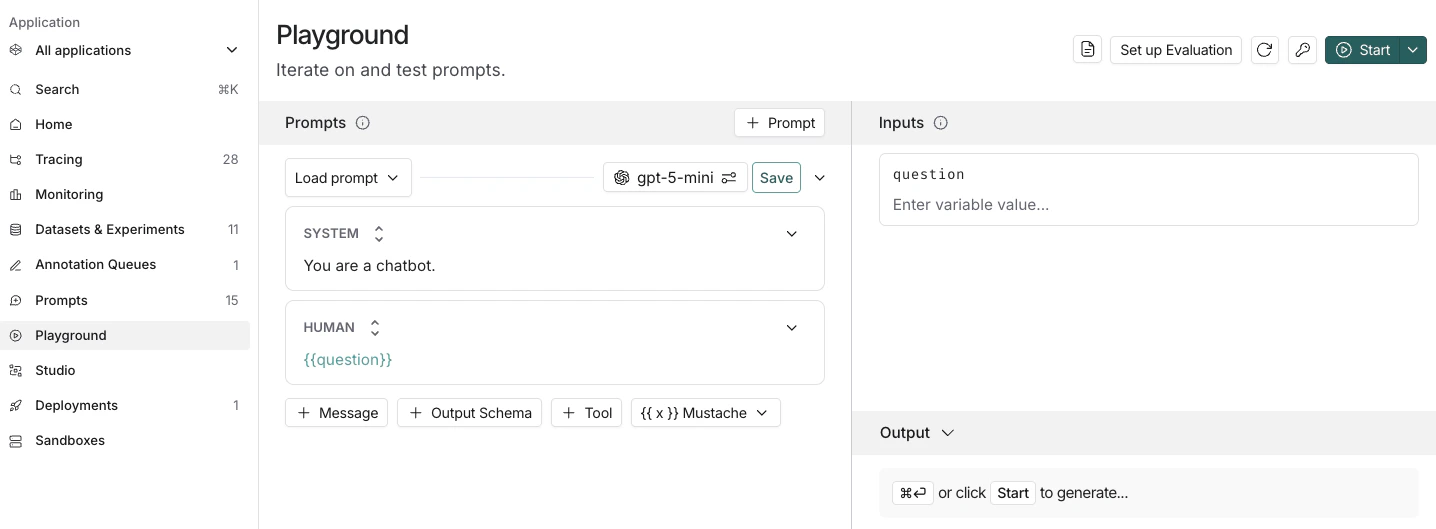
在 [LangSmith UI](https://smith.langchain.com) 中，通过左侧边栏或应用主页导航至 **Playground**。

<img className="block dark:hidden" src="https://mintcdn.com/hhh-8c10bf0c/lw0BeSKlKZkqgDHv/langsmith/images/empty-playground-light.png?fit=max&auto=format&n=lw0BeSKlKZkqgDHv&q=85&s=324c5eca2bd5c829468bd5b24d3d5b1b" alt="空白的 Playground" width="1436" height="529" data-path="langsmith/images/empty-playground-light.png" />

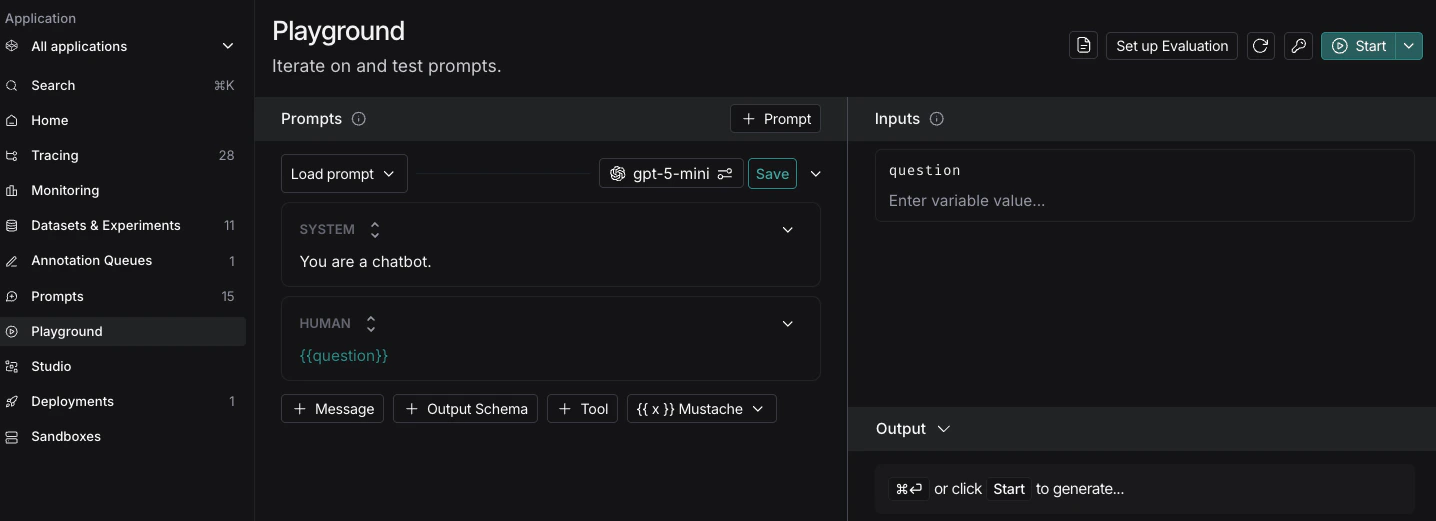
<img className="hidden dark:block" src="https://mintcdn.com/hhh-8c10bf0c/lw0BeSKlKZkqgDHv/langsmith/images/empty-playground-dark.png?fit=max&auto=format&n=lw0BeSKlKZkqgDHv&q=85&s=2927066478e6ae9c111abaf80c83b045" alt="空白的 Playground" width="1436" height="521" data-path="langsmith/images/empty-playground-dark.png" />

## 编写你的提示词

Playground 的左侧面板是提示词的可编辑视图。

提示词由多条消息组成，每条消息都有一个 *角色*，包括：

* **System**： “使用说明书”。用于定义 AI 的角色、语气和基本规则（例如，“你是一个乐于助人的助手，会用解释天气的方式来解释事物”）。
* **Human**： “用户”。代表向 AI 提问或提供指令的人。
* **AI**： “助手”。这是模型的回复。在 Playground 中，你可以用它来提供“少样本”示例——向 AI 展示你希望它如何准确回复。
* **Tool / Function**： 这些角色代表外部工具（如计算器或搜索引擎）的输出。它们帮助你测试 AI 在接收到特定数据后应如何表现。
* **Chat**： 通用角色，通常在导入未分配特定标签的日志或对话历史时使用。
* **Messages List**： 动态占位符。允许你添加一个包含整个先前消息列表的变量，便于管理长对话历史。

### 模板格式

默认的 [模板格式](/langsmith/prompt-template-format) 是 f-string，但你也可以通过点击提示框下方的下拉框将提示词模板格式更改为 mustache。

### 添加模板变量

当你在提示词中添加变量时，提示词会变得特别有用。你可以使用变量为提示词添加动态内容。有两种方式可以添加模板变量：

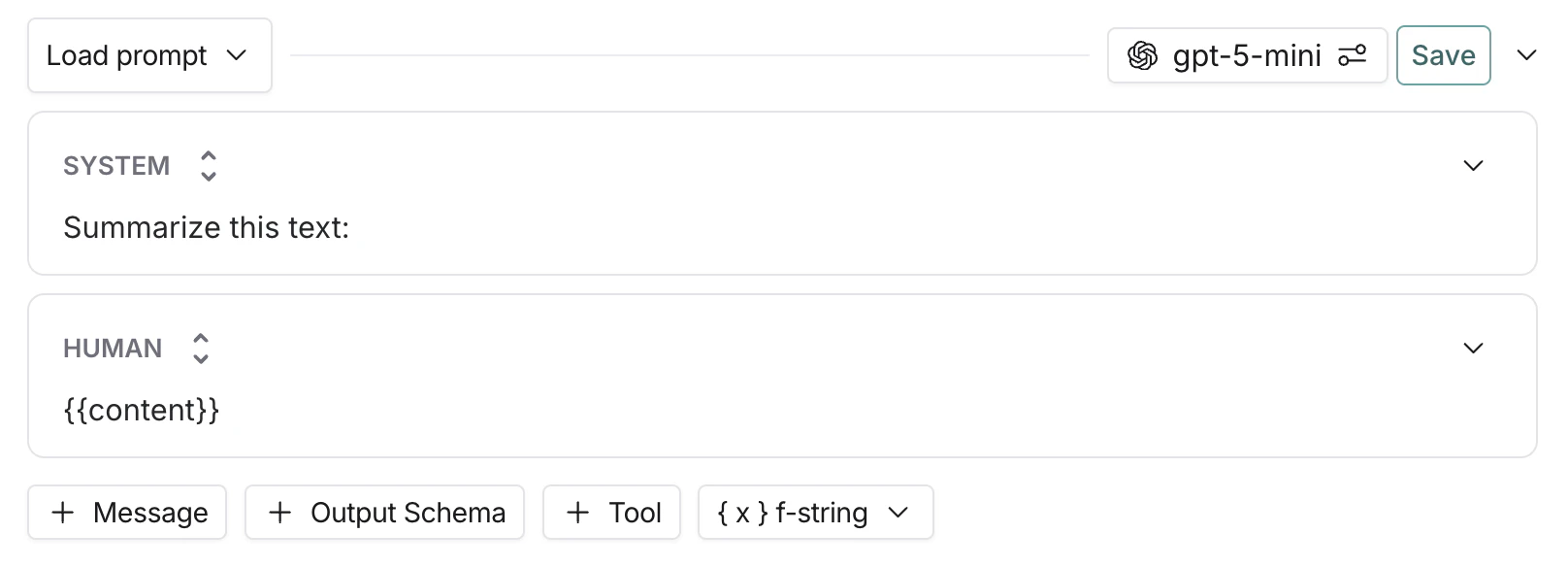
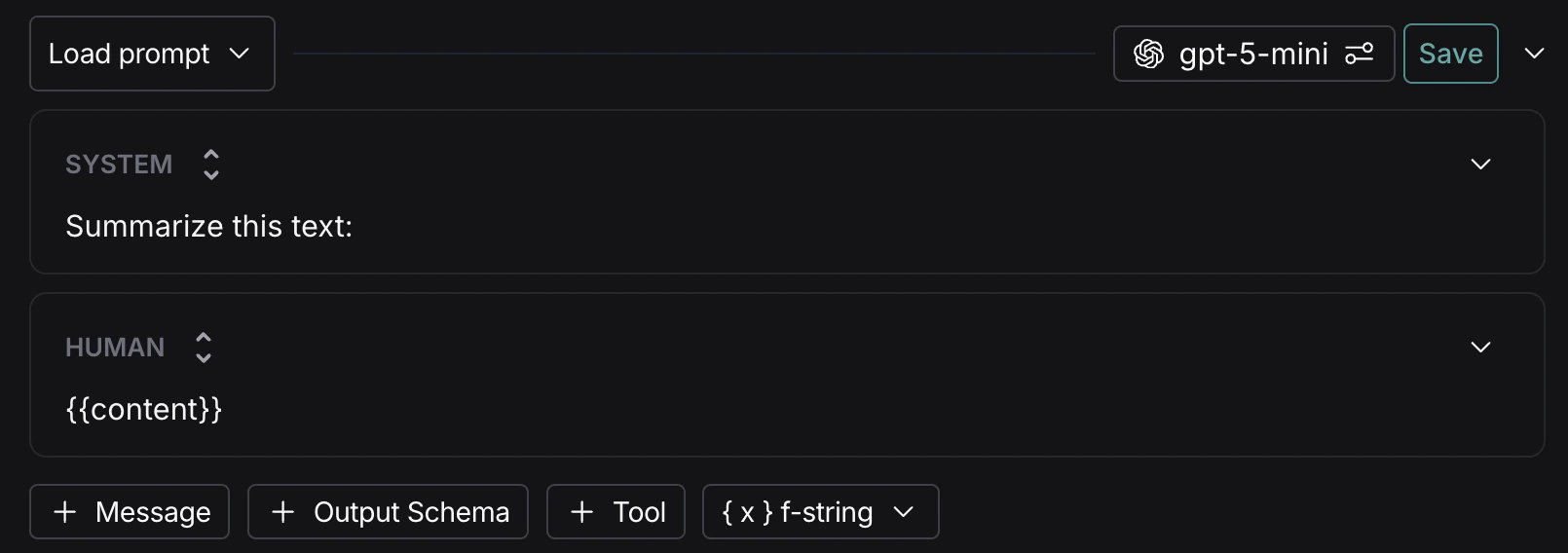
* 在提示词中添加 `{variable_name}`（对于 f-string 格式，两侧各有一个花括号；对于 mustache 格式，两侧各有两个花括号）。

  <img className="block dark:hidden" src="https://mintcdn.com/hhh-8c10bf0c/PHzfKFWRV-Ltob7s/langsmith/images/prompt-with-variable-light.png?fit=max&auto=format&n=PHzfKFWRV-Ltob7s&q=85&s=8a94f513256a6914967950d474025cbf" alt="提示框中的变量。" width="1616" height="584" data-path="langsmith/images/prompt-with-variable-light.png" />

  <img className="hidden dark:block" src="https://mintcdn.com/hhh-8c10bf0c/PHzfKFWRV-Ltob7s/langsmith/images/prompt-with-variable-dark.png?fit=max&auto=format&n=PHzfKFWRV-Ltob7s&q=85&s=931efcd77fa582cbd48f6e3f2934dc04" alt="提示框中的变量。" width="1610" height="568" data-path="langsmith/images/prompt-with-variable-dark.png" />

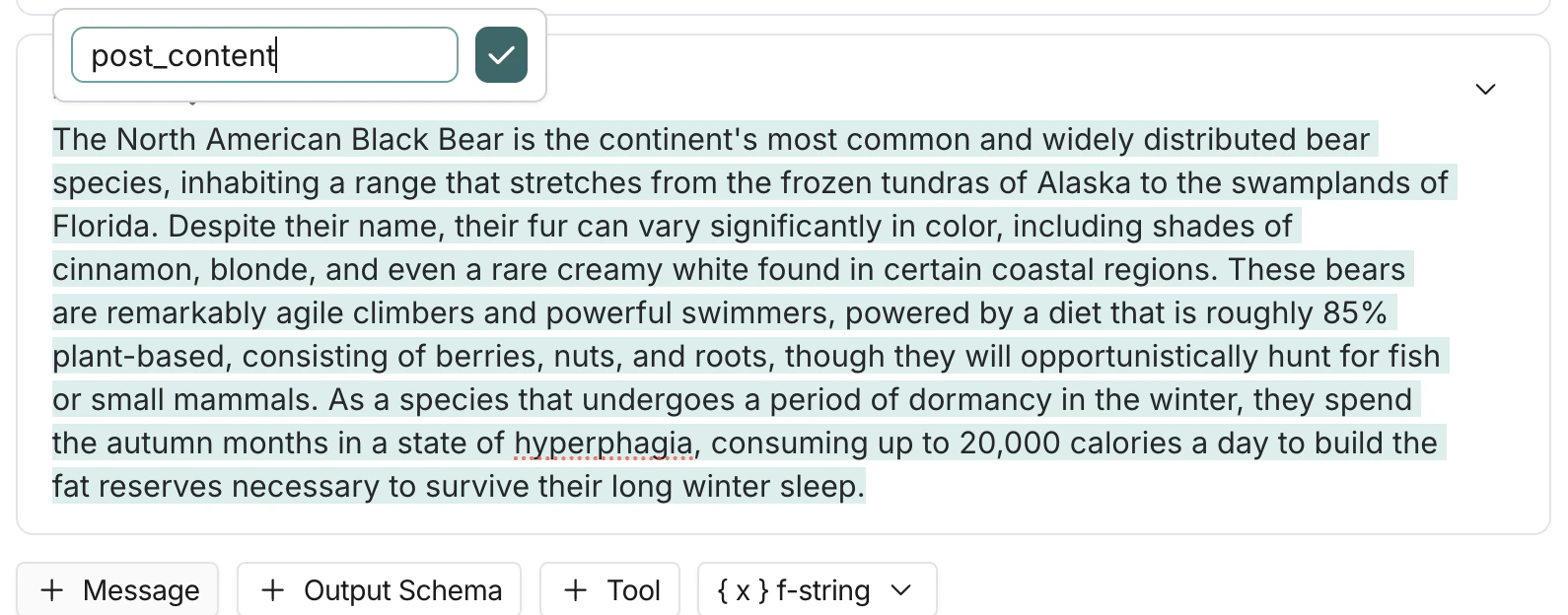
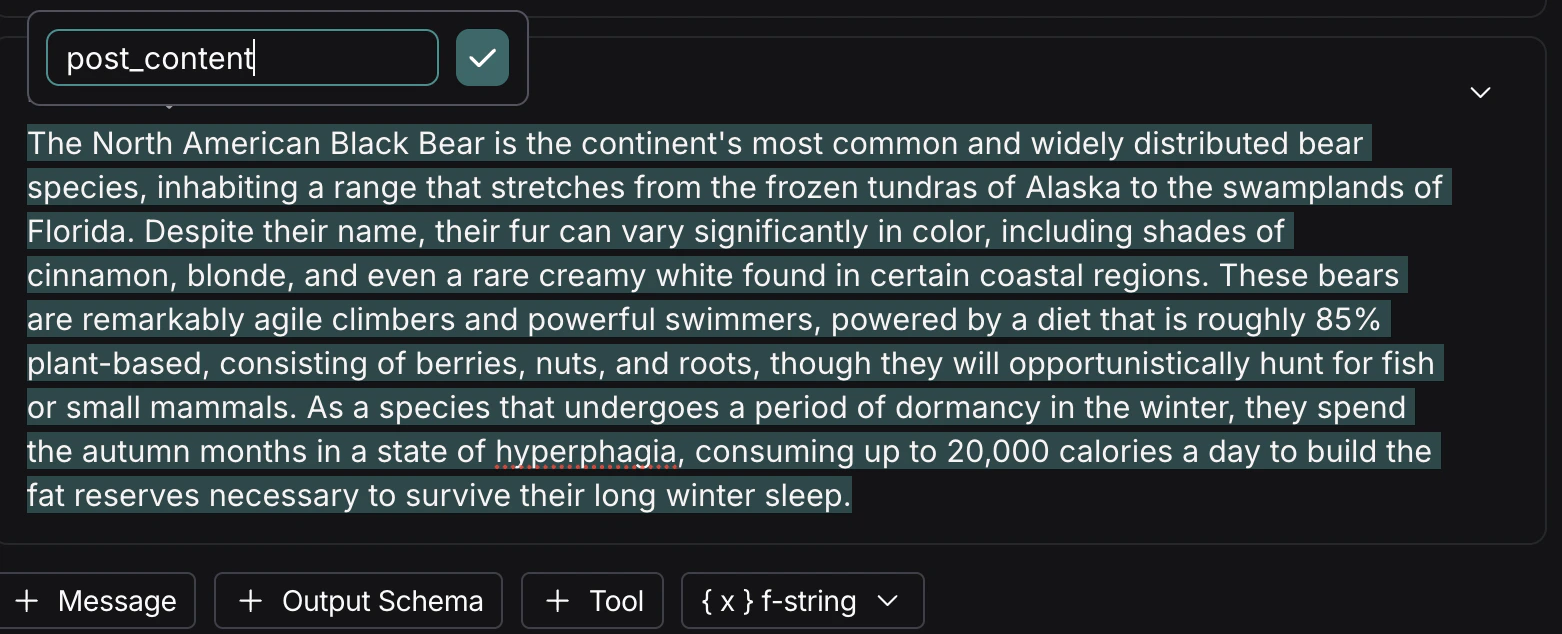
* 高亮你想要模板化的文本，点击显示的 **转换为变量** 工具提示按钮。输入变量名称并进行转换。

  <img className="block dark:hidden" src="https://mintcdn.com/hhh-8c10bf0c/lw0BeSKlKZkqgDHv/langsmith/images/convert-to-variable-light.png?fit=max&auto=format&n=lw0BeSKlKZkqgDHv&q=85&s=270a8e35c1e89ffab048d6451ab7d895" alt="双击提示词会显示变量图标。" width="1590" height="624" data-path="langsmith/images/convert-to-variable-light.png" />

  <img className="hidden dark:block" src="https://mintcdn.com/hhh-8c10bf0c/lw0BeSKlKZkqgDHv/langsmith/images/convert-to-variable-dark.png?fit=max&auto=format&n=lw0BeSKlKZkqgDHv&q=85&s=50f40371d960aceca5f416db9a895068" alt="双击提示词会显示变量图标。" width="1562" height="634" data-path="langsmith/images/convert-to-variable-dark.png" />

添加变量后，Playground 的右侧面板会有一个 **Input** 框，用于为提示词变量提供示例输入。填入值以测试提示词。

<Callout icon="book" color="#4F46E5" iconType="regular">
  有关提示词模板格式的更多详细信息和两种语法的示例，请参阅 [提示词模板格式](/langsmith/prompt-template-format) 指南。
</Callout>

### 结构化输出

为你的提示词添加输出模式将获得结构化的输出格式。了解更多关于 [结构化输出](/langsmith/prompt-engineering-concepts#structured-output) 的信息。

### 工具

你也可以通过点击提示词编辑器底部的 **+ Tool** 按钮来添加工具。有关如何使用工具的更多信息，请参阅 [使用工具](/langsmith/use-tools)。

<Callout type="info" icon="feather">
  在 Playground 中使用 **[Polly](/langsmith/polly)** AI 助手，借助 AI 辅助生成工具、创建输出模式并优化你的提示词。
</Callout>

## 运行提示词

要运行提示词，请使用 Playground 右侧面板顶部的 <Icon icon="player-play" /> **Start** 按钮。

## 保存你的提示词

要保存你的提示词，请点击 **Save** 按钮并为你的提示词命名。

你在 Playground 设置中选择的模型和配置将与提示词一起保存。当你重新打开提示词时，模型和配置将自动从保存的版本加载。

<Check>
  首次创建公共提示词时，系统会要求你设置一个 LangChain Hub 句柄。你所有的公共提示词都将链接到此句柄。在共享工作区中，此句柄将为整个工作区设置。
</Check>

## 查看你的提示词

创建提示词后，你可以在左侧边栏的 **Prompts** 下查看提示词表格。

## 添加元数据

要为提示词添加元数据，请点击页面右上角的 <Icon icon="dots-vertical" /> **More** 图标，然后从下拉菜单中选择 <Icon icon="pencil" /> **Update metadata**。这将带你进入一个页面，你可以在其中添加有关提示词的额外信息，包括描述和 README。

# 后续步骤

现在你已经创建了一个提示词，可以在你的应用程序代码中使用它。请参阅 [如何以编程方式拉取提示词](/langsmith/manage-prompts-programmatically#pull-a-prompt)。

***

<div className="source-links">
  <Callout icon="edit">
    [Edit this page on GitHub](https://github.com/langchain-ai/docs/edit/main/src/i18n\zh-CN\langsmith\create-a-prompt.mdx) or [file an issue](https://github.com/langchain-ai/docs/issues/new/choose).
  </Callout>

  <Callout icon="terminal-2">
    [Connect these docs](/use-these-docs) to Claude, VSCode, and more via MCP for real-time answers.
  </Callout>
</div>