> ## Documentation Index
> Fetch the complete documentation index at: https://langchain-zh.cn/llms.txt
> Use this file to discover all available pages before exploring further.
# 配置提示设置
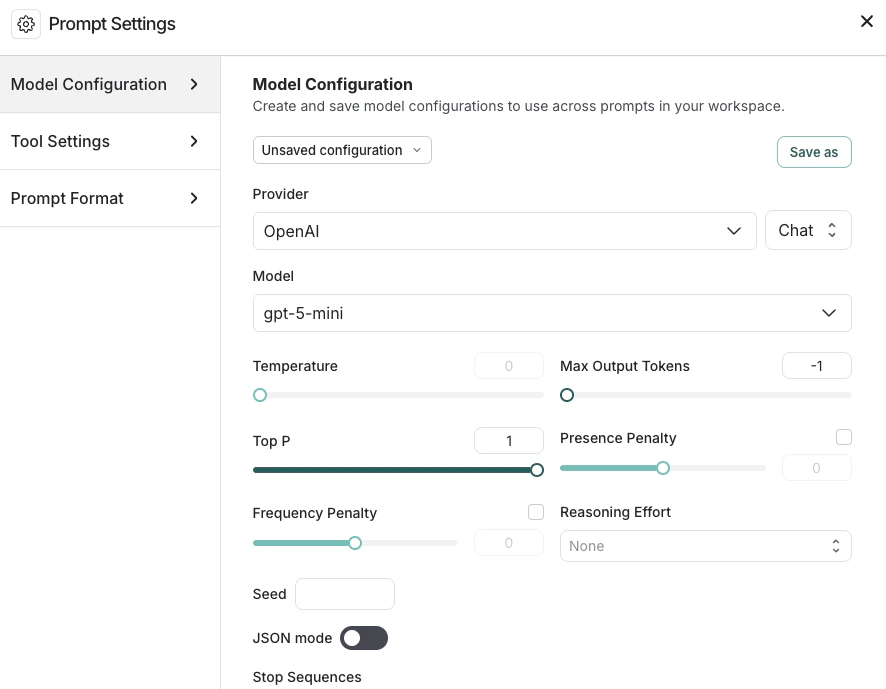
[Playground](/langsmith/prompt-engineering-concepts#playground) 允许您控制提示的各种设置。**提示设置**窗口包含:
* [模型配置](#模型配置)
* [工具设置](#工具设置)
* [提示格式化](#提示格式化)
要访问**提示设置**:
1. 在左侧边栏中导航到 **Playground**。
2. 在 **Prompts** 标题下,选择模型名称旁边的齿轮 图标,这将打开**提示设置**窗口。
## 模型配置
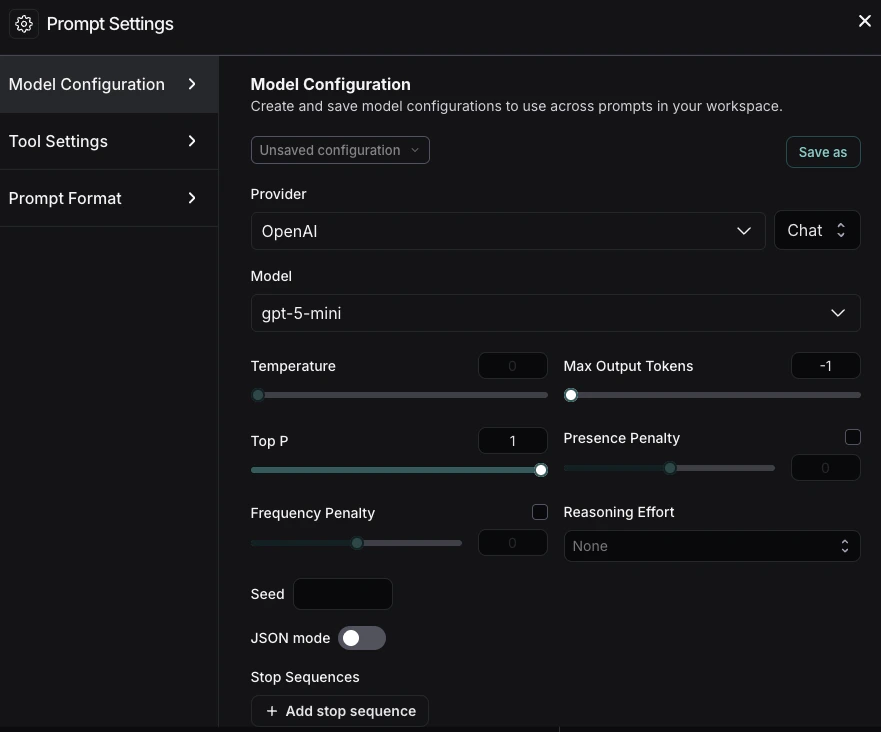
[模型配置](/langsmith/model-configurations) 定义了您的提示运行时使用的参数。配置在您的工作空间中共享——在此处保存的任何配置都可在其他 LangSmith 功能中使用,并且管理员可以在 **Settings** > **Model configurations** 中查看。有关特定设置的详细信息,请参考您的模型提供商的文档(例如,[Anthropic](https://platform.claude.com/docs/en/api/messages) 或 [OpenAI](https://platform.openai.com/docs/api-reference/responses/create))。
### 创建保存的配置
1. 在 **Model Configurations** 选项卡中,根据需要调整模型配置——您可以选择一个[已保存的配置进行编辑](#编辑配置)。
2. 点击顶部栏中的 **Save As** 按钮。
3. 为您的配置输入一个名称和可选描述,然后确认。
4. 现在您已保存了配置,您组织[工作空间](/langsmith/administration-overview#workspaces)中的任何人都可以访问它。所有已保存的配置都可在 **Model Configuration** 下拉列表中找到。
5. 创建了已保存的配置后,您可以将其设置为默认配置,这样您创建的任何新提示都将自动使用此配置。要将配置设置为默认,请点击下拉列表中模型名称旁边的 **Set as default** 图标。
### 编辑配置
1. 要重命名已保存的配置或更新描述,请选择配置名称或描述并进行必要的更改。
2. 根据需要更新当前配置的参数,然后点击顶部的 **Save** 按钮。
### 删除配置
1. 选择您要删除的配置。
2. 点击垃圾桶 图标将其删除。
### 额外参数
**Extra Parameters** 字段允许您传递 LangSmith 界面未直接支持的其他模型参数。这在两种情况下特别有用:
1. 当模型提供商发布了尚未集成到 LangSmith 界面的新参数时。您可以用 JSON 格式指定这些参数以立即使用它们。例如:
```json theme={"theme":{"light":"catppuccin-latte","dark":"catppuccin-mocha"}}
{
"reasoning_effort": "medium"
}
```
2. 当在 Playground 中排查与参数相关的错误时,例如:
```
TypeError: AsyncCompletions.create() got an unexpected keyword argument 'max_concurrency'
```
如果您收到关于不必要参数的错误(在使用 [LangChain JS](/oss/python/langchain/overview) 进行运行跟踪时更常见),您可以使用此字段来移除这些额外参数。
## 工具设置
[*工具*](/langsmith/prompt-engineering-concepts#tools) 使您的 LLM 能够执行诸如搜索网络、查找信息等任务。在 **Tools Settings** 选项卡中,您可以管理 LLM 使用和访问您在提示中定义的工具的方式,包括:
* **并行工具调用**:在适当时并行调用多个工具。这允许模型同时从不同来源收集信息。(取决于模型对并行执行的支持。)
* **工具选择**:选择模型可以访问的工具。更多详细信息,请参考[在提示中使用工具](/langsmith/use-tools)。
要管理工作空间中可用的工具,包括跨提示启用、禁用和编辑工具,请参考[使用注册表管理工具](/langsmith/use-tools#manage-tools-with-the-registry)。
## 提示格式化
**Prompt Format** 选项卡允许您指定:
* **提示类型**。有关聊天和完成提示的详细信息,请参考[提示工程](/langsmith/prompt-engineering-concepts#prompt-types)概念。
* **模板格式**。有关提示模板化和使用变量的详细信息,请参考[F-string 与 mustache](/langsmith/prompt-engineering-concepts#f-string-vs-mustache)。
***
[Edit this page on GitHub](https://github.com/langchain-ai/docs/edit/main/src/i18n\zh-CN\langsmith\managing-model-configurations.mdx) or [file an issue](https://github.com/langchain-ai/docs/issues/new/choose).
[Connect these docs](/use-these-docs) to Claude, VSCode, and more via MCP for real-time answers.