> ## Documentation Index
> Fetch the complete documentation index at: https://langchain-zh.cn/llms.txt
> Use this file to discover all available pages before exploring further.
# 设置资源标签
> 创建和管理资源标签,以在 LangSmith 工作空间中组织项目、数据集、提示词和其他资源。
资源标签功能适用于 [Plus 和 Enterprise 计划](/langsmith/pricing-plans)。
虽然[工作空间](/langsmith/administration-overview#workspaces)有助于分隔信任边界和访问控制,但标签可以帮助您在工作空间内组织资源。标签是您可以附加到资源上的键值对。
**请勿与提交标签混淆**:资源标签是用于组织和筛选工作空间资源(项目、数据集、提示词等)的键值对。[提交标签](/langsmith/manage-prompts#commit-tags)是引用提示词提交历史中特定版本的标签。虽然这两种类型的标签可能使用相似的术语(如 `prod` 或 `staging`),但资源标签帮助您*组织工作空间内的资源*,而提交标签则控制代码中*使用哪个版本*的提示词。
在深入了解本内容之前,阅读[关于组织和工作空间的概念指南](/langsmith/administration-overview)可能会有所帮助。
## 创建标签
要创建资源标签,您必须拥有 [`workspaces:manage` 权限](/langsmith/organization-workspace-operations)(默认授予[工作空间管理员](/langsmith/rbac#workspace-admin)角色)。编辑者可以将 **Application** 标签应用到他们拥有更新权限的资源上,但创建标签键或应用其他类型的标签需要此权限。有关将标签应用到资源的更多信息,请参阅工作空间操作中的[标签部分](/langsmith/organization-workspace-operations#tags)。
要创建标签:
1. 导航到工作空间的 **Settings** 页面,点击左侧边栏中的 **Resource tags**。
2. 在这里,您将看到按键分组的现有标签值。LangSmith 默认创建 **Application** 和 **Environment** 键。您可以使用 **Application** 键来筛选 UI 中显示的资源。
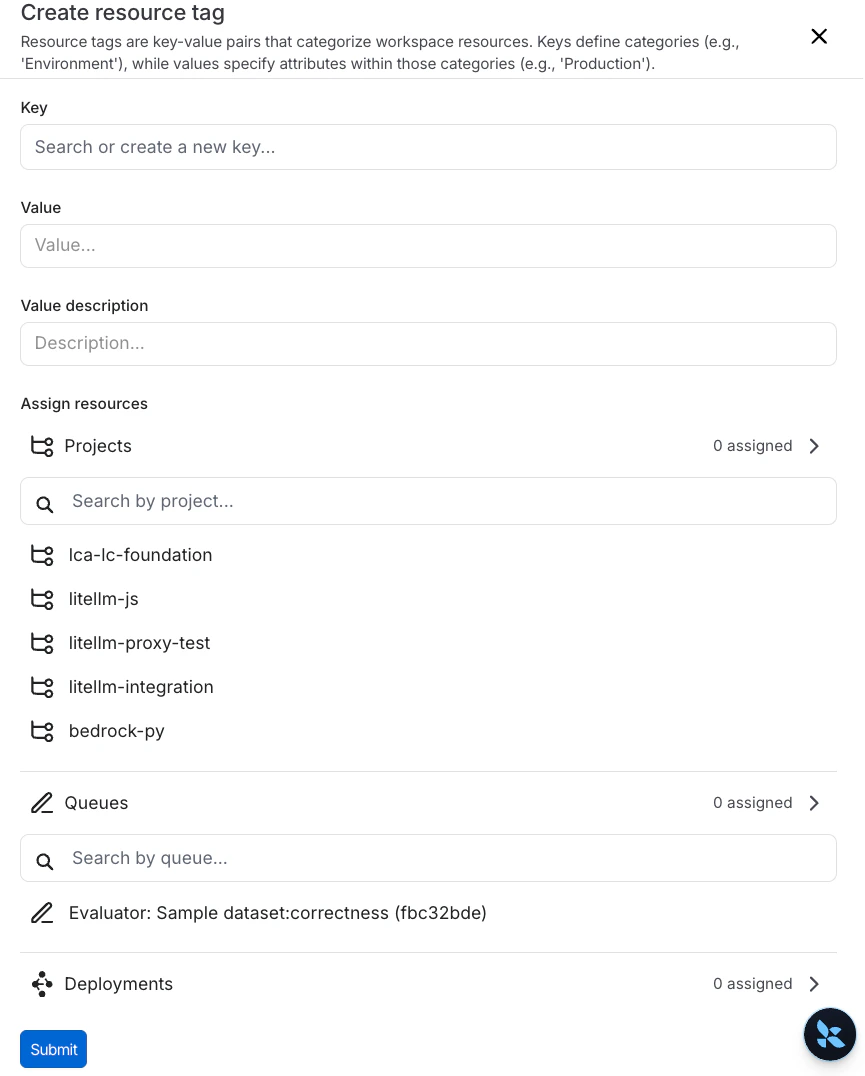
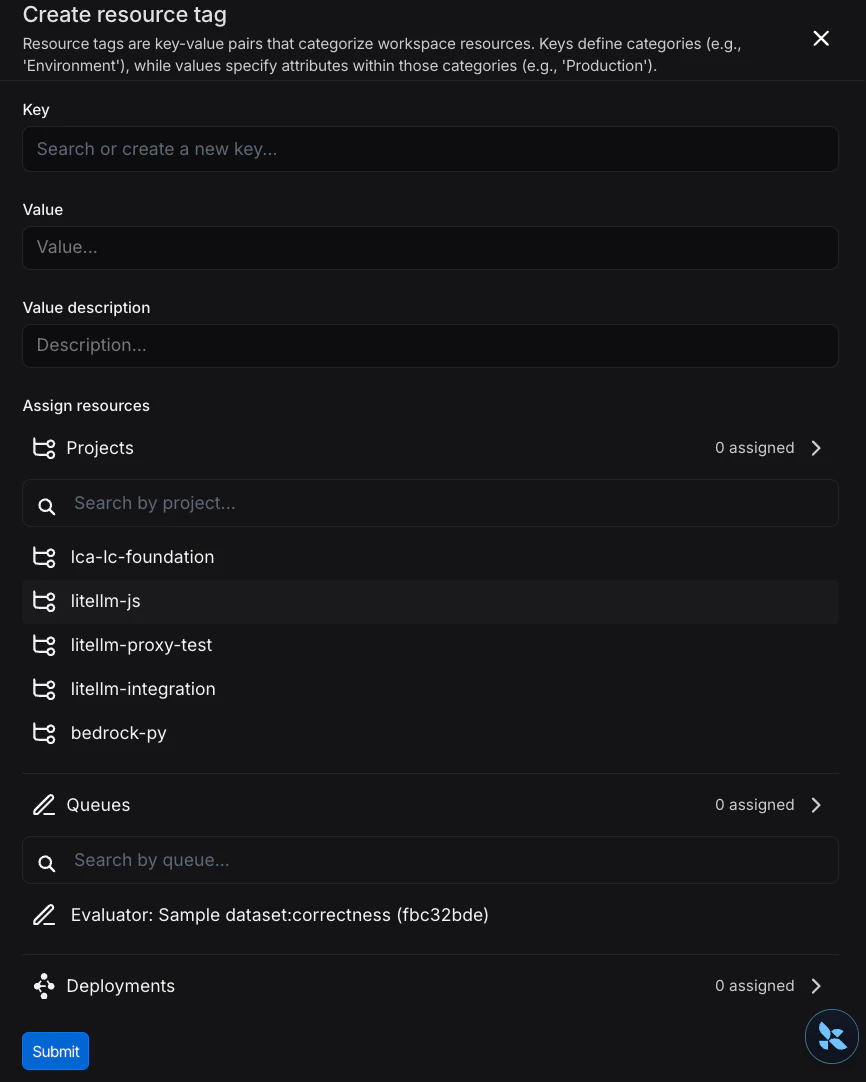
3. 点击页面顶部的 **New Tag**。系统将提示您输入标签的键和值。请注意,您可以使用现有的键或创建一个新的键。
 ## 为资源分配标签
在创建新标签的同一侧边栏面板中,您也可以为标签分配资源。在 **Assign resources** 部分搜索相应的资源,并选择您想要标记的资源。
您只能使用资源标签标记工作空间范围内的资源。这包括追踪项目、标注队列、部署、实验、数据集和提示词。
要从资源中取消分配标签,请在标签面板和资源标签面板中,点击标签旁边的 垃圾桶图标。
## 删除标签
您可以从 [**Settings** 页面 > **Resource tags** 页面](https://smith.langchain.com/settings/workspaces/resource_tags)删除标签的键或值。要删除一个键,请点击该键旁边的 垃圾桶图标。要删除一个值,请点击该值旁边的 垃圾桶图标。
如果您删除一个键,LangSmith 将删除与该键关联的所有值。当您删除一个值时,您将失去该值与资源之间的所有关联。
***
## 为资源分配标签
在创建新标签的同一侧边栏面板中,您也可以为标签分配资源。在 **Assign resources** 部分搜索相应的资源,并选择您想要标记的资源。
您只能使用资源标签标记工作空间范围内的资源。这包括追踪项目、标注队列、部署、实验、数据集和提示词。
要从资源中取消分配标签,请在标签面板和资源标签面板中,点击标签旁边的 垃圾桶图标。
## 删除标签
您可以从 [**Settings** 页面 > **Resource tags** 页面](https://smith.langchain.com/settings/workspaces/resource_tags)删除标签的键或值。要删除一个键,请点击该键旁边的 垃圾桶图标。要删除一个值,请点击该值旁边的 垃圾桶图标。
如果您删除一个键,LangSmith 将删除与该键关联的所有值。当您删除一个值时,您将失去该值与资源之间的所有关联。
***
[Edit this page on GitHub](https://github.com/langchain-ai/docs/edit/main/src/i18n\zh-CN\langsmith\set-up-resource-tags.mdx) or [file an issue](https://github.com/langchain-ai/docs/issues/new/choose).
[Connect these docs](/use-these-docs) to Claude, VSCode, and more via MCP for real-time answers.