> ## Documentation Index
> Fetch the complete documentation index at: https://langchain-zh.cn/llms.txt
> Use this file to discover all available pages before exploring further.

# 使用追踪上传文件

<Check>
  在深入了解本内容之前，建议先阅读以下指南：

  * [使用可追踪装饰器或包装器通过 LangSmith 进行追踪](/langsmith/annotate-code#use-traceable--traceable)
</Check>

<Note>
  以下功能在以下 SDK 版本中可用：

  * Python SDK: >=0.1.141
  * JS/TS SDK: >=0.2.5
</Note>

LangSmith 支持在追踪中上传二进制文件（如图像、音频、视频、PDF 和 CSV）。这在处理使用多模态输入或输出的 LLM 管道时特别有用。

在 Python 和 TypeScript SDK 中，都可以通过指定每个文件的 MIME 类型和二进制内容来向追踪添加附件。本指南解释了如何使用 Python 中的 `Attachment` 类型以及 TypeScript 中的 `Uint8Array` / `ArrayBuffer` 来定义和追踪附件。

### Python

在 Python SDK 中，您可以使用 `Attachment` 类型向追踪添加文件。每个 `Attachment` 需要：

* `mime_type` (str): 文件的 MIME 类型（例如 `"image/png"`）。
* `data` (bytes | Path): 文件的二进制内容，或文件路径。

为了方便起见，您也可以使用 `(mime_type, data)` 形式的元组来定义附件。

只需用 `@traceable` 装饰一个函数，并将您的 `Attachment` 实例作为参数包含在内。请注意，要使用文件路径而不是原始字节，您需要在可追踪装饰器中设置 `dangerously_allow_filesystem` 标志为 `True`。

```python Python theme={"theme":{"light":"catppuccin-latte","dark":"catppuccin-mocha"}}
from langsmith import traceable
from langsmith.schemas import Attachment
from pathlib import Path
import os

# 如果要使用文件路径，必须将 dangerously_allow_filesystem 设置为 True
@traceable(dangerously_allow_filesystem=True)
def trace_with_attachments(
    val: int,
    text: str,
    image: Attachment,
    audio: Attachment,
    video: Attachment,
    pdf: Attachment,
    csv: Attachment,
):
    return f"Processed: {val}, {text}, {len(image.data)}, {len(audio.data)}, {len(video.data)}, {len(pdf.data), {len(csv.data)}}"

# 辅助函数：将文件加载为字节
def load_file(file_path: str) -> bytes:
    with open(file_path, "rb") as f:
        return f.read()

# 加载文件并创建附件
image_data = load_file("my_image.png")
audio_data = load_file("my_mp3.mp3")
video_data = load_file("my_video.mp4")
pdf_data = load_file("my_document.pdf")

image_attachment = Attachment(mime_type="image/png", data=image_data)
audio_attachment = Attachment(mime_type="audio/mpeg", data=audio_data)
video_attachment = Attachment(mime_type="video/mp4", data=video_data)
pdf_attachment = ("application/pdf", pdf_data) # 可以直接定义为 (mime_type, data) 元组
csv_attachment = Attachment(mime_type="text/csv", data=Path(os.getcwd()) / "my_csv.csv")

# 定义其他参数
val = 42
text = "Hello, world!"

# 调用带有追踪附件的函数
result = trace_with_attachments(
    val=val,
    text=text,
    image=image_attachment,
    audio=audio_attachment,
    video=video_attachment,
    pdf=pdf_attachment,
    csv=csv_attachment,
)
```

### TypeScript

在 TypeScript SDK 中，您可以通过使用 `Uint8Array` 或 `ArrayBuffer` 作为数据类型来向追踪添加附件。每个附件的 MIME 类型在 `extractAttachments` 中指定：

* `Uint8Array`: 适用于直接处理二进制数据。
* `ArrayBuffer`: 表示固定长度的二进制数据，可以根据需要转换为 `Uint8Array`。

用 `traceable` 包装您的函数，并在 `extractAttachments` 选项中包含您的附件。

在 TypeScript SDK 中，`extractAttachments` 函数是 `traceable` 配置中的一个可选参数。当调用被 traceable 包装的函数时，它会从输入中提取二进制数据（例如图像、音频文件），并与其他追踪数据一起记录，同时指定其 MIME 类型。

请注意，在 TypeScript SDK 中不能直接传入文件路径，因为并非所有运行时环境都支持访问本地文件。

```typescript TypeScript theme={"theme":{"light":"catppuccin-latte","dark":"catppuccin-mocha"}}
type AttachmentData = Uint8Array | ArrayBuffer;
type Attachments = Record<string, [string, AttachmentData]>;

extractAttachments?: (
    ...args: Parameters<Func>
) => [Attachments | undefined, KVMap];
```

```typescript TypeScript theme={"theme":{"light":"catppuccin-latte","dark":"catppuccin-mocha"}}
import { traceable } from "langsmith/traceable";

const traceableWithAttachments = traceable(
    (
        val: number,
        text: string,
        attachment: Uint8Array,
        attachment2: ArrayBuffer,
        attachment3: Uint8Array,
        attachment4: ArrayBuffer,
        attachment5: Uint8Array,
    ) =>
        `Processed: ${val}, ${text}, ${attachment.length}, ${attachment2.byteLength}, ${attachment3.length}, ${attachment4.byteLength}, ${attachment5.byteLength}`,
    {
        name: "traceWithAttachments",
        extractAttachments: (
            val: number,
            text: string,
            attachment: Uint8Array,
            attachment2: ArrayBuffer,
            attachment3: Uint8Array,
            attachment4: ArrayBuffer,
            attachment5: Uint8Array,
        ) => [
            {
                "image inputs": ["image/png", attachment],
                "mp3 inputs": ["audio/mpeg", new Uint8Array(attachment2)],
                "video inputs": ["video/mp4", attachment3],
                "pdf inputs": ["application/pdf", new Uint8Array(attachment4)],
                "csv inputs": ["text/csv", new Uint8Array(attachment5)],
            },
            { val, text },
        ],
    }
);

const fs = Deno // 或 Node.js fs 模块
const image = await fs.readFile("my_image.png"); // Uint8Array
const mp3Buffer = await fs.readFile("my_mp3.mp3");
const mp3ArrayBuffer = mp3Buffer.buffer; // 转换为 ArrayBuffer
const video = await fs.readFile("my_video.mp4"); // Uint8Array
const pdfBuffer = await fs.readFile("my_document.pdf");
const pdfArrayBuffer = pdfBuffer.buffer; // 转换为 ArrayBuffer
const csv = await fs.readFile("test-vals.csv"); // Uint8Array

// 定义示例参数
const val = 42;
const text = "Hello, world!";

// 使用文件调用 traceableWithAttachments
const result = await traceableWithAttachments(
    val, text, image, mp3ArrayBuffer, video, pdfArrayBuffer, csv
);
```

以上代码在 LangSmith UI 中的显示效果如下。您可以展开每个附件以查看其内容。
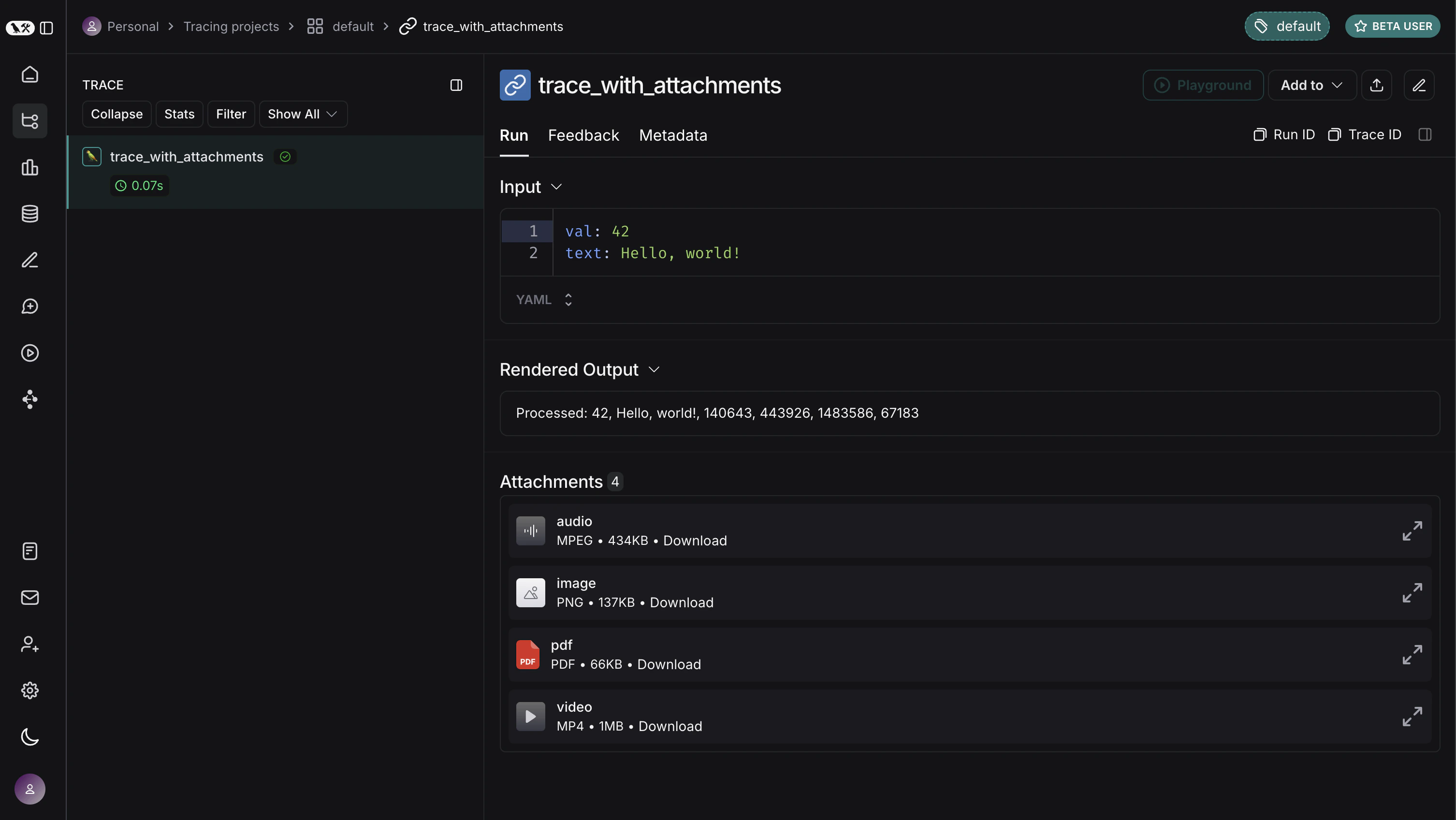
<img src="https://mintcdn.com/hhh-8c10bf0c/BCyPqRNhtAjzdCmk/langsmith/images/trace-with-attachments.png?fit=max&auto=format&n=BCyPqRNhtAjzdCmk&q=85&s=025f4b7eb34960d34bc616142f21af0e" alt="带有附件的追踪" width="3012" height="1696" data-path="langsmith/images/trace-with-attachments.png" />

***

<div className="source-links">
  <Callout icon="edit">
    [Edit this page on GitHub](https://github.com/langchain-ai/docs/edit/main/src/i18n\zh-CN\langsmith\upload-files-with-traces.mdx) or [file an issue](https://github.com/langchain-ai/docs/issues/new/choose).
  </Callout>

  <Callout icon="terminal-2">
    [Connect these docs](/use-these-docs) to Claude, VSCode, and more via MCP for real-time answers.
  </Callout>
</div>
