> ## Documentation Index
> Fetch the complete documentation index at: https://langchain-zh.cn/llms.txt
> Use this file to discover all available pages before exploring further.
# LangSmith Studio
在本地使用 LangChain 构建智能体时,可视化智能体内部发生的情况、实时与其交互并在问题发生时进行调试非常有帮助。**LangSmith Studio** 是一个免费的可视化界面,用于从您的本地机器开发和测试 LangChain 智能体。
Studio 连接到您本地运行的智能体,向您展示智能体执行的每一步:发送给模型的提示、工具调用及其结果,以及最终输出。您可以测试不同的输入,检查中间状态,并迭代智能体的行为,而无需额外的代码或部署。
本页面介绍如何为您的本地 LangChain 智能体设置 Studio。
## 前置条件
开始之前,请确保您拥有以下内容:
* **一个 LangSmith 账户**:在 [smith.langchain.com](https://smith.langchain.com) 注册(免费)或登录。
* **一个 LangSmith API 密钥**:遵循 [创建 API 密钥](/langsmith/create-account-api-key#create-an-api-key) 指南。
* 如果您不希望数据 [追踪](/langsmith/observability-concepts#traces) 到 LangSmith,请在应用程序的 `.env` 文件中设置 `LANGSMITH_TRACING=false`。禁用追踪后,没有数据会离开您的本地服务器。
## 设置本地智能体服务器
### 1. 安装 LangGraph CLI
[LangGraph CLI](/langsmith/cli) 提供本地开发服务器(也称为 [智能体服务器](/langsmith/agent-server)),将您的智能体连接到 Studio。
```shell theme={"theme":{"light":"catppuccin-latte","dark":"catppuccin-mocha"}}
npx @langchain/langgraph-cli
```
### 2. 准备您的智能体
如果您已经有 LangChain 智能体,可以直接使用它。此示例使用一个简单的邮件智能体:
```typescript title="agent.ts" theme={"theme":{"light":"catppuccin-latte","dark":"catppuccin-mocha"}}
import { createAgent } from "@langchain/agents";
function sendEmail(to: string, subject: string, body: string): string {
const email = {
to,
subject,
body,
};
// ... email sending logic
return `Email sent to ${to}`;
}
const agent = createAgent({
model: "gpt-5.2",
tools: [sendEmail],
systemPrompt: "You are an email assistant. Always use the send_email tool.",
});
```
### 3. 环境变量
Studio 需要 LangSmith API 密钥来连接您的本地智能体。在项目的根目录创建一个 `.env` 文件,并从 [LangSmith](https://smith.langchain.com/settings) 添加您的 API 密钥。
确保您的 `.env` 文件未提交到版本控制系统,例如 Git。
```bash .env theme={"theme":{"light":"catppuccin-latte","dark":"catppuccin-mocha"}}
LANGSMITH_API_KEY=lsv2...
```
### 4. 创建 LangGraph 配置文件
LangGraph CLI 使用配置文件来定位您的智能体并管理依赖项。在应用的目录中创建一个 `langgraph.json` 文件:
```json title="langgraph.json" theme={"theme":{"light":"catppuccin-latte","dark":"catppuccin-mocha"}}
{
"dependencies": ["."],
"graphs": {
"agent": "./src/agent.ts:agent"
},
"env": ".env"
}
```
[`createAgent`](https://reference.langchain.com/javascript/langchain/index/createAgent) 函数自动返回编译后的 LangGraph 图,这是配置文件中 `graphs` 键所期望的内容。
对于配置文件中 JSON 对象每个键的详细解释,请参阅 [LangGraph 配置文件参考](/langsmith/cli#configuration-file)。
此时,项目结构如下所示:
```bash theme={"theme":{"light":"catppuccin-latte","dark":"catppuccin-mocha"}}
my-app/
├── src
│ └── agent.ts
├── .env
└── langgraph.json
```
### 5. 安装依赖项
```shell theme={"theme":{"light":"catppuccin-latte","dark":"catppuccin-mocha"}}
yarn install
```
### 6. 在 Studio 中查看您的智能体
启动开发服务器以将您的智能体连接到 Studio:
```shell theme={"theme":{"light":"catppuccin-latte","dark":"catppuccin-mocha"}}
npx @langchain/langgraph-cli dev
```
Safari 阻止对 Studio 的 `localhost` 连接。要解决此问题,请使用 `--tunnel` 运行上述命令,通过安全隧道访问 Studio。
服务器运行后,您的智能体可通过 API 在 `http://127.0.0.1:2024` 访问,并通过 Studio UI 在 `https://smith.langchain.com/studio/?baseUrl=http://127.0.0.1:2024` 访问:
当 Studio 连接到您的本地智能体时,您可以快速迭代智能体的行为。运行测试输入,检查完整的执行跟踪,包括提示、工具参数、返回值以及令牌/延迟指标。当出现问题时,Studio 会捕获异常及周围状态,帮助您了解发生了什么。
开发服务器支持热重载——在代码中更改提示或工具签名,Studio 会立即反映这些更改。从任何步骤重新运行对话线程以测试您的更改,而无需重新开始。此工作流适用于从简单的单工具智能体到复杂的多节点图。
有关如何运行 Studio 的更多信息,请参阅 [LangSmith 文档](/langsmith/home) 中的以下指南:
* [运行应用程序](/langsmith/use-studio#run-application)
* [管理助手](/langsmith/use-studio#manage-assistants)
* [管理线程](/langsmith/use-studio#manage-threads)
* [迭代提示](/langsmith/observability-studio)
* [调试 LangSmith 跟踪](/langsmith/observability-studio#debug-langsmith-traces)
* [向数据集添加节点](/langsmith/observability-studio#add-node-to-dataset)
## 视频指南
有关本地和已部署代理的更多信息,请参阅[设置本地代理服务器](/oss/javascript/langchain/studio#set-up-local-agent-server)和[部署](/oss/javascript/langchain/deploy)。
***
[Edit this page on GitHub](https://github.com/langchain-ai/docs/edit/main/src/i18n\zh-CN\oss\langchain\studio.mdx) or [file an issue](https://github.com/langchain-ai/docs/issues/new/choose).
[Connect these docs](/use-these-docs) to Claude, VSCode, and more via MCP for real-time answers.
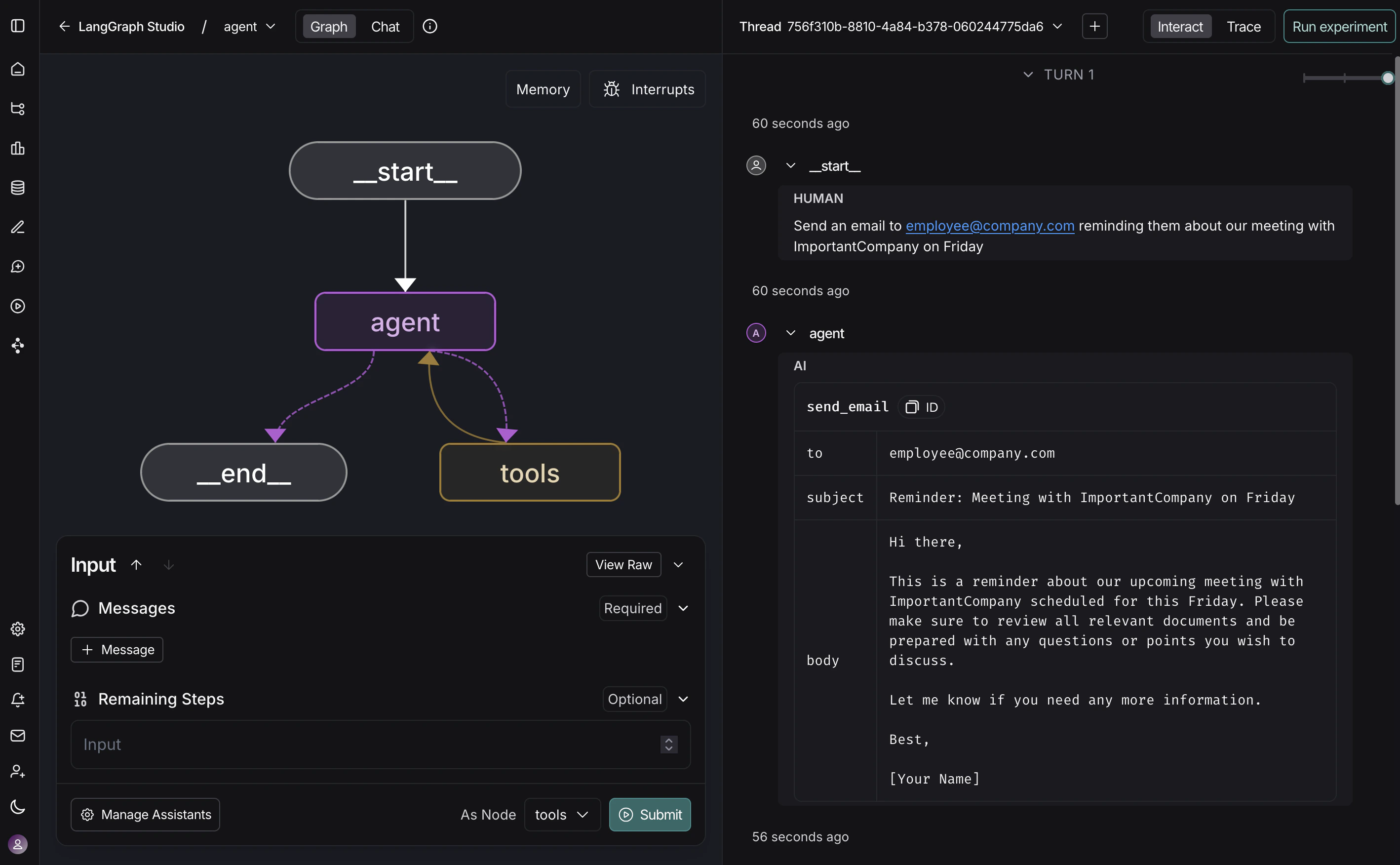 当 Studio 连接到您的本地智能体时,您可以快速迭代智能体的行为。运行测试输入,检查完整的执行跟踪,包括提示、工具参数、返回值以及令牌/延迟指标。当出现问题时,Studio 会捕获异常及周围状态,帮助您了解发生了什么。
开发服务器支持热重载——在代码中更改提示或工具签名,Studio 会立即反映这些更改。从任何步骤重新运行对话线程以测试您的更改,而无需重新开始。此工作流适用于从简单的单工具智能体到复杂的多节点图。
有关如何运行 Studio 的更多信息,请参阅 [LangSmith 文档](/langsmith/home) 中的以下指南:
* [运行应用程序](/langsmith/use-studio#run-application)
* [管理助手](/langsmith/use-studio#manage-assistants)
* [管理线程](/langsmith/use-studio#manage-threads)
* [迭代提示](/langsmith/observability-studio)
* [调试 LangSmith 跟踪](/langsmith/observability-studio#debug-langsmith-traces)
* [向数据集添加节点](/langsmith/observability-studio#add-node-to-dataset)
## 视频指南
当 Studio 连接到您的本地智能体时,您可以快速迭代智能体的行为。运行测试输入,检查完整的执行跟踪,包括提示、工具参数、返回值以及令牌/延迟指标。当出现问题时,Studio 会捕获异常及周围状态,帮助您了解发生了什么。
开发服务器支持热重载——在代码中更改提示或工具签名,Studio 会立即反映这些更改。从任何步骤重新运行对话线程以测试您的更改,而无需重新开始。此工作流适用于从简单的单工具智能体到复杂的多节点图。
有关如何运行 Studio 的更多信息,请参阅 [LangSmith 文档](/langsmith/home) 中的以下指南:
* [运行应用程序](/langsmith/use-studio#run-application)
* [管理助手](/langsmith/use-studio#manage-assistants)
* [管理线程](/langsmith/use-studio#manage-threads)
* [迭代提示](/langsmith/observability-studio)
* [调试 LangSmith 跟踪](/langsmith/observability-studio#debug-langsmith-traces)
* [向数据集添加节点](/langsmith/observability-studio#add-node-to-dataset)
## 视频指南