

在本地使用 LangChain 构建智能体时,可视化智能体内部发生的情况、实时与其交互并在问题出现时进行调试非常有帮助。LangSmith Studio 是一个免费的可视化界面,用于从您的本地机器开发和测试 LangChain 智能体。
Studio 连接到您本地运行的智能体,向您展示智能体执行的每一步:发送给模型的提示、工具调用及其结果,以及最终输出。您可以测试不同的输入,检查中间状态,并在无需额外代码或部署的情况下迭代智能体的行为。
本文档介绍了如何为您的本地 LangChain 智能体设置 Studio。
前置条件
开始之前,请确保您拥有以下内容:
- 一个 LangSmith 账户:在 smith.langchain.com 注册(免费)或登录。
- 一个 LangSmith API 密钥:遵循 创建 API 密钥 指南。
- 如果您不希望数据被 追踪 到 LangSmith,请在应用程序的
.env 文件中设置 LANGSMITH_TRACING=false。禁用追踪后,没有数据会离开您的本地服务器。
设置本地 Agent 服务器
1. 安装 LangGraph CLI
LangGraph CLI 提供了一个本地开发服务器(也称为 Agent Server),它将您的智能体连接到 Studio。
# Python >= 3.11 is required.
pip install --upgrade "langgraph-cli[inmem]"
2. 准备您的智能体
如果您已经有 LangChain 智能体,可以直接使用它。此示例使用一个简单的邮件智能体:
from langchain.agents import create_agent
def send_email(to: str, subject: str, body: str):
"""Send an email"""
email = {
"to": to,
"subject": subject,
"body": body
}
# ... email sending logic
return f"Email sent to {to}"
agent = create_agent(
"gpt-5.2",
tools=[send_email],
system_prompt="You are an email assistant. Always use the send_email tool.",
)
3. 环境变量
Studio 需要 LangSmith API 密钥来连接您的本地智能体。在项目的根目录创建一个 .env 文件,并从 LangSmith 添加您的 API 密钥。
确保您的 .env 文件未提交到版本控制系统,例如 Git。
LANGSMITH_API_KEY=lsv2...
4. 创建 LangGraph 配置文件
LangGraph CLI 使用配置文件来定位您的智能体并管理依赖项。在应用的目录中创建一个 langgraph.json 文件:
{
"dependencies": ["."],
"graphs": {
"agent": "./src/agent.py:agent"
},
"env": ".env"
}
The create_agent function automatically returns a compiled LangGraph graph, which is what the graphs key expects in the configuration file.
At this point, the project structure will look like this:
my-app/
├── src
│ └── agent.py
├── .env
└── langgraph.json
5. 安装依赖项
从根目录安装您的项目依赖项:
pip install langchain langchain-openai
uv add langchain langchain-openai
6. 在 Studio 中查看您的智能体
启动开发服务器以将您的智能体连接到 Studio:
Safari 阻止对 Studio 的 localhost 连接。要解决此问题,请运行上述命令并加上 --tunnel 参数,通过安全隧道访问 Studio。
Once the server is running, your agent is accessible both via API at http://127.0.0.1:2024 and through the Studio UI at https://smith.langchain.com/studio/?baseUrl=http://127.0.0.1:2024:
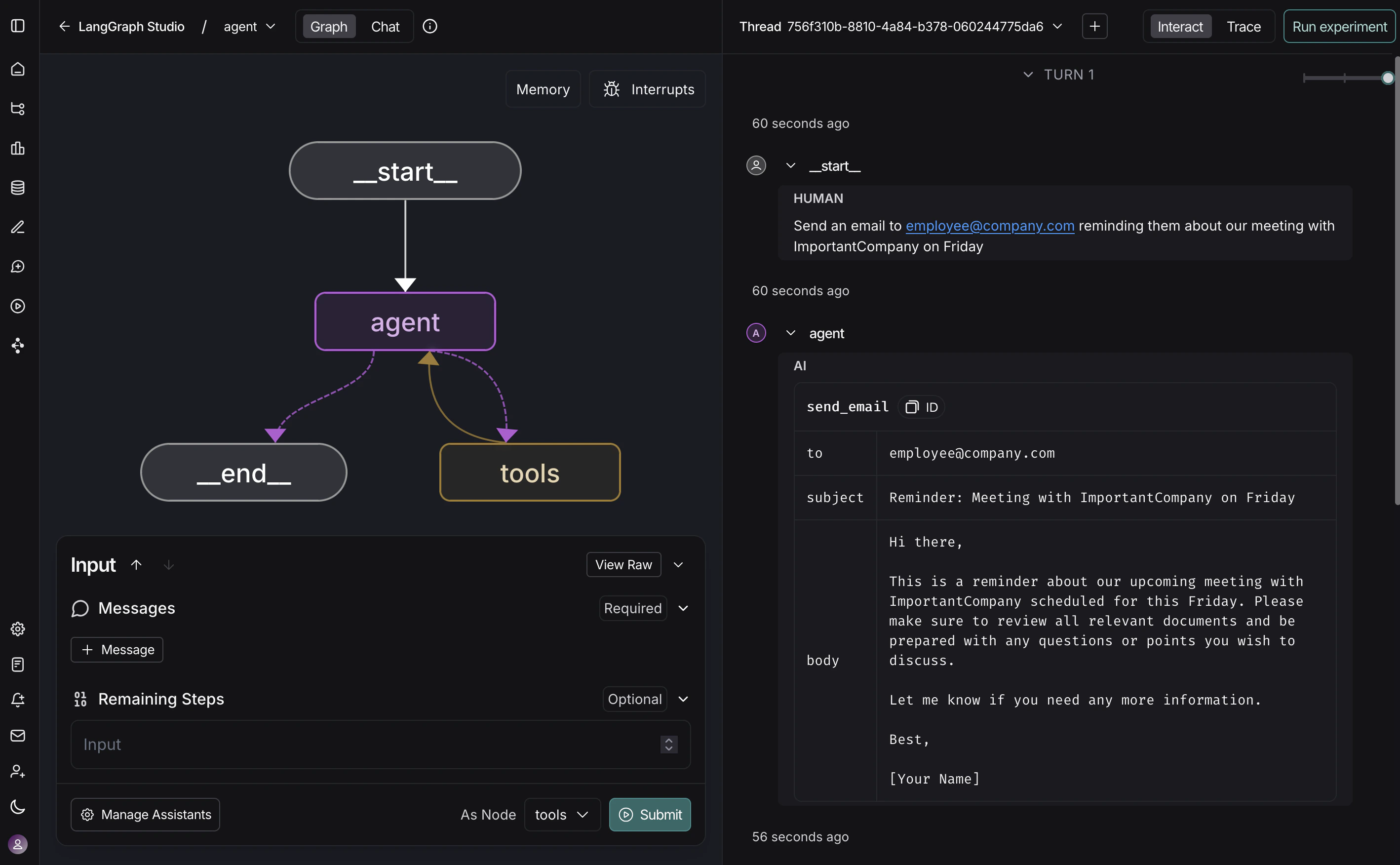
With Studio connected to your local agent, you can iterate quickly on your agent’s behavior. Run a test input, inspect the full execution trace including prompts, tool arguments, return values, and token/latency metrics. When something goes wrong, Studio captures exceptions with the surrounding state to help you understand what happened.
The development server supports hot-reloading—make changes to prompts or tool signatures in your code, and Studio reflects them immediately. Re-run conversation threads from any step to test your changes without starting over. This workflow scales from simple single-tool agents to complex multi-node graphs.
For more information on how to run Studio, refer to the following guides in the LangSmith docs:
视频指南